
Microsoft Azure offers a myriad of services, each designed to cater to specific business needs. One such service that has gained significant traction for enhancing security and improving network performance is the Azure Private Link. In this step-by-step guide, we’ll walk through the process of creating an Azure Private Link service, ensuring you harness the full potential of this powerful tool for your cloud infrastructure.
Before we delve into the steps, let’s understand the essence of Azure Private Link.
Understanding Azure Private Link
Azure Private Link is a service that enables you to access Azure PaaS services securely over a private endpoint within your virtual network. It brings a new dimension to network security by ensuring that your traffic never traverses the public internet. Instead, it stays within the Microsoft Azure backbone network, enhancing both privacy and performance.
Why should you consider using Azure Private Link?
- Security: Your data remains within the Azure network, reducing exposure to potential security threats.
- Performance: Direct connectivity to services results in lower latency and improved network performance.
- Compliance: Ideal for industries with stringent regulatory compliance requirements.
Now that we understand the significance, let’s dive into the step-by-step process of creating an Azure Private Link service.
Sign in to Azure
Sign in to the Azure portal with your Azure account.
Create a virtual network
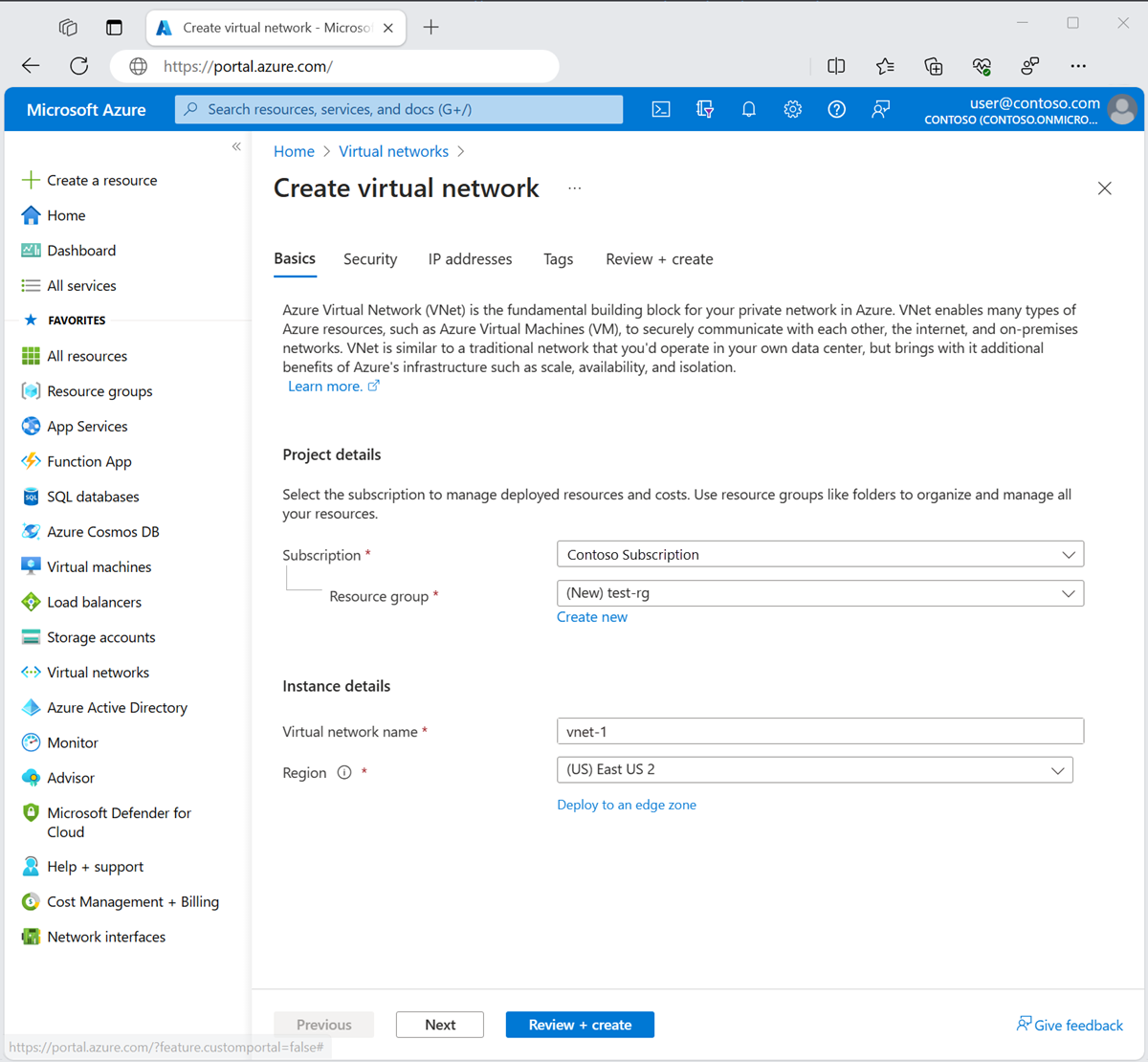
The following procedure creates a virtual network with a resource subnet.
- In the portal, search for and select Virtual networks.
- On the Virtual networks page, select + Create.
- On the Basics tab of Create virtual network, enter or select the following information:Expand tableSettingValueProject detailsSubscriptionSelect your subscription.Resource groupSelect Create new.
Enter test-rg in Name.
Select OK.Instance detailsNameEnter vnet-1.RegionSelect East US 2. - Select Next to proceed to the Security tab.
- Select Next to proceed to the IP Addresses tab.
- In the address space box in Subnets, select the default subnet.
- In Edit subnet, enter or select the following information:Expand tableSettingValueSubnet detailsSubnet templateLeave the default Default.NameEnter subnet-1.Starting addressLeave the default of 10.0.0.0.Subnet sizeLeave the default of /24(256 addresses).

- Select Save.
- Select Review + create at the bottom of the screen, and when validation passes, select Create.
Create load balancer
Create an internal load balancer that load balances virtual machines.
During the creation of the load balancer, you configure:
- Frontend IP address
- Backend pool
- Inbound load-balancing rules
- In the search box at the top of the portal, enter Load balancer. Select Load balancers in the search results.
- In the Load balancer page, select + Create.
- In the Basics tab of the Create load balancer page, enter, or select the following information:
| Setting | Value |
|---|---|
| Project details | |
| Subscription | Select your subscription. |
| Resource group | Select test-rg. |
| Instance details | |
| Name | Enter load-balancer |
| Region | Select East US 2. |
| SKU | Leave the default Standard. |
| Type | Select Internal. |
| Tier | Select Regional. |
- Select Next: Frontend IP configuration.
- In Frontend IP configuration, select + Add a frontend IP configuration.
- Enter or select the following information in Add frontend IP configuration.
| Setting | Value |
|---|---|
| Name | Enter frontend. |
| Virtual network | Select vnet-1 (test-rg). |
| Subnet | Select subnet-1 (10.0.0.0/24). |
| Assignment | Leave the default of Dynamic. |
| Availability zone | Leave the default of Zone-redundant. |
- Select Add.
- Select Next: Backend pools.
- In Backend pools, select + Add a backend pool.
- Enter backend-pool for Name.
- Select NIC or IP Address for Backend Pool Configuration.
- Select Save.
- Select Next: Inbound rules.
- In Load balancing rule, select + Add a load balancing rule.
- In Add load balancing rule, enter or select the following information:
| Setting | Value |
|---|---|
| Name | Enter http-rule |
| IP Version | Select IPv4 or IPv6 depending on your requirements. |
| Frontend IP address | Select frontend. |
| Backend pool | Select backend-pool. |
| Protocol | Select TCP. |
| Port | Enter 80. |
| Backend port | Enter 80. |
| Health probe | Select Create new. In Name, enter health-probe. Select HTTP in Protocol. Leave the rest of the defaults, and select Save. |
| Session persistence | Select None. |
| Idle timeout (minutes) | Enter or select 15. |
| Enable TCP Reset | Select the box. |
| Enable Floating IP | Leave the box unchecked. |
- Select Save.
- Select the blue Review + create button.
- Select Create.
Create a private link service
Create a Private Link service behind the load balancer you created in the previous section.
- In the search box at the top of the portal, enter Private link. Select Private link services in the search results.
- Select + Create.
- In the Basics tab, enter or select the following information:
| Setting | Value |
|---|---|
| Project details | |
| Subscription | Select your subscription. |
| Resource Group | Select test-rg. |
| Instance details | |
| Name | Enter private-link-service. |
| Region | Select East US 2. |
- Select Next: Outbound settings.
- In the Outbound settings tab, enter or select the following information:
| Setting | Value |
|---|---|
| Load balancer | Select load-balancer. |
| Load balancer frontend IP address | Select frontend (10.0.0.4). |
| Source NAT subnet | Select vnet-1/subnet-1 (10.0.0.0/24). |
| Enable TCP proxy V2 | Leave the default of No. If your application expects a TCP proxy v2 header, select Yes. |
| Private IP address settings | Leave the default settings. |
- Select Next: Access security.
- Leave the default of Role-based access control only in the Access security tab.
- Select Next: Tags.
- Select Next: Review + create.
- Select Create.
Your private link service is created and can receive traffic. If you want to see traffic flows, configure your application behind your standard load balancer.
Create private endpoint
In this section, you map the private link service to a private endpoint. A virtual network contains the private endpoint for the private link service. This virtual network contains the resources that access your private link service.
Create private endpoint virtual network
Repeat steps in Create a virtual network to create a virtual network with the following settings:
| Setting | Value |
|---|---|
| Name | vnet-pe |
| Location | East US 2 |
| Address space | 10.1.0.0/16 |
| Subnet name | subnet-pe |
| Subnet address range | 10.1.0.0/24 |
Create private endpoint
- In the search box at the top of the portal, enter Private endpoint. Select Private endpoints in the search results.
- Select + Create.
- In the Basics tab, enter or select the following information:
| Setting | Value |
|---|---|
| Project details | |
| Subscription | Select your subscription. |
| Resource group | Select test-rg. You created this resource group in the previous section. |
| Instance details | |
| Name | Enter private-endpoint. |
| Network Interface Name | Leave the default of private-endpoint-nic. |
| Region | Select East US 2. |
- Select Next: Resource.
- In the Resource tab, enter or select the following information:
| Setting | Value |
|---|---|
| Connection method | Select Connect to an Azure resource in my directory. |
| Subscription | Select your subscription. |
| Resource type | Select Microsoft.Network/privateLinkServices. |
| Resource | Select private-link-service. |
- Select Next: Virtual Network.
- In Virtual Network, enter or select the following information.
| Setting | Value |
|---|---|
| Networking | |
| Virtual network | Select vnet-pe (test-rg). |
| Subnet | Select subnet-pe. |
| Network policy for private endpoints | Select edit to apply Network policy for private endpoints. In Edit subnet network policy, in Network policies setting for all private endpoints in this subnet, select Network security groups and Route Tables. Select Save. For more information, see Manage network policies for private endpoints |
| Setting | Value |
|---|---|
| Private IP configuration | Select Dynamically allocate IP address. |
| Setting | Value |
|---|---|
| Private IP configuration | Select Statically allocate IP address. |
| Name | Enter ipconfig-1. |
| Private IP | Enter 10.1.0.10. |

- Select Next: DNS.
- Select Next: Tags.
- Select Next: Review + create.
- Select Create.
IP address of private endpoint
In this section, you find the IP address of the private endpoint that corresponds with the load balancer and private link service. The following steps are only necessary if you selected Dynamically allocate IP address in the previous section.
- Enter test-rg in the search box at the top of the portal. Select test-rg in the search results in Resource Groups.
- In the test-rg resource group, select private-endpoint.
- In the Overview page of private-endpoint, select the name of the network interface associated with the private endpoint. The network interface name begins with private-endpoint.nic.
- In the Overview page of the private endpoint nic, the IP address of the endpoint is displayed in Private IP address.

Leave a Reply